
Add Flights And Hotels
Keep your bookings with the itinerary they belong to.
To add bookings, tap Edit Itinerary first. The itinerary needs a Going To.
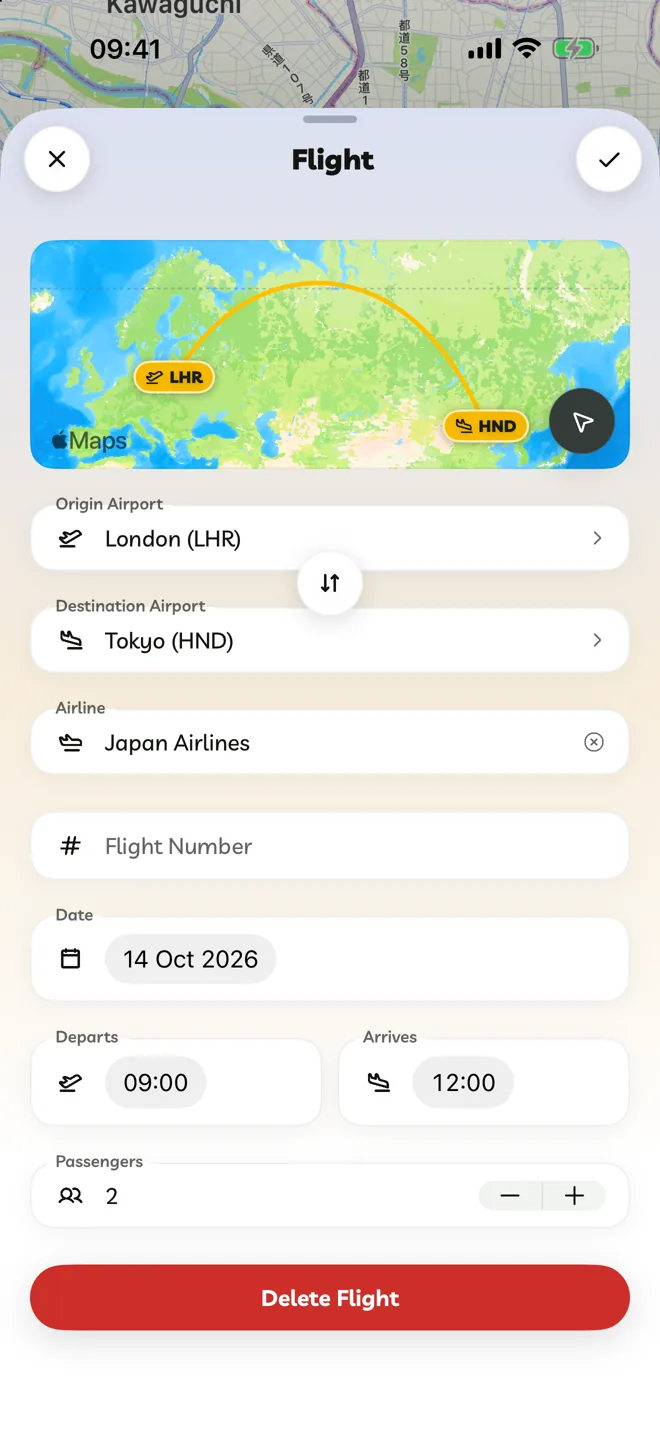
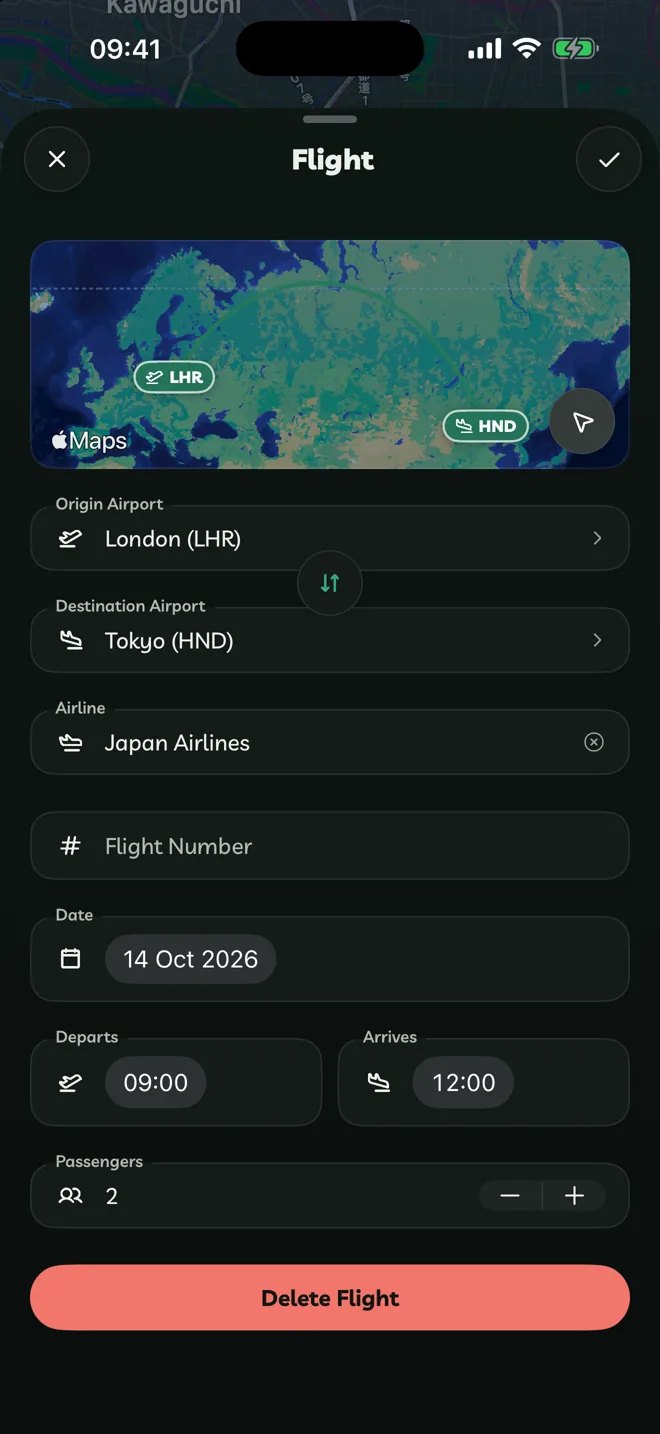
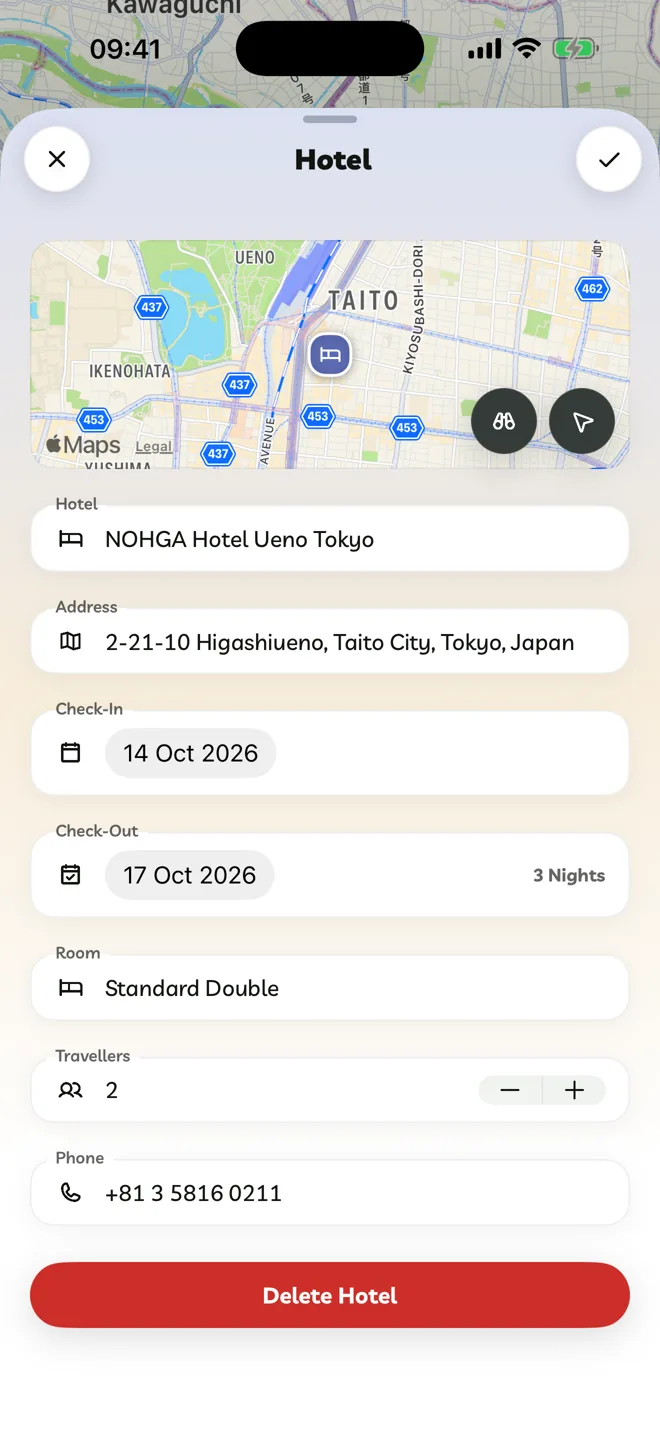
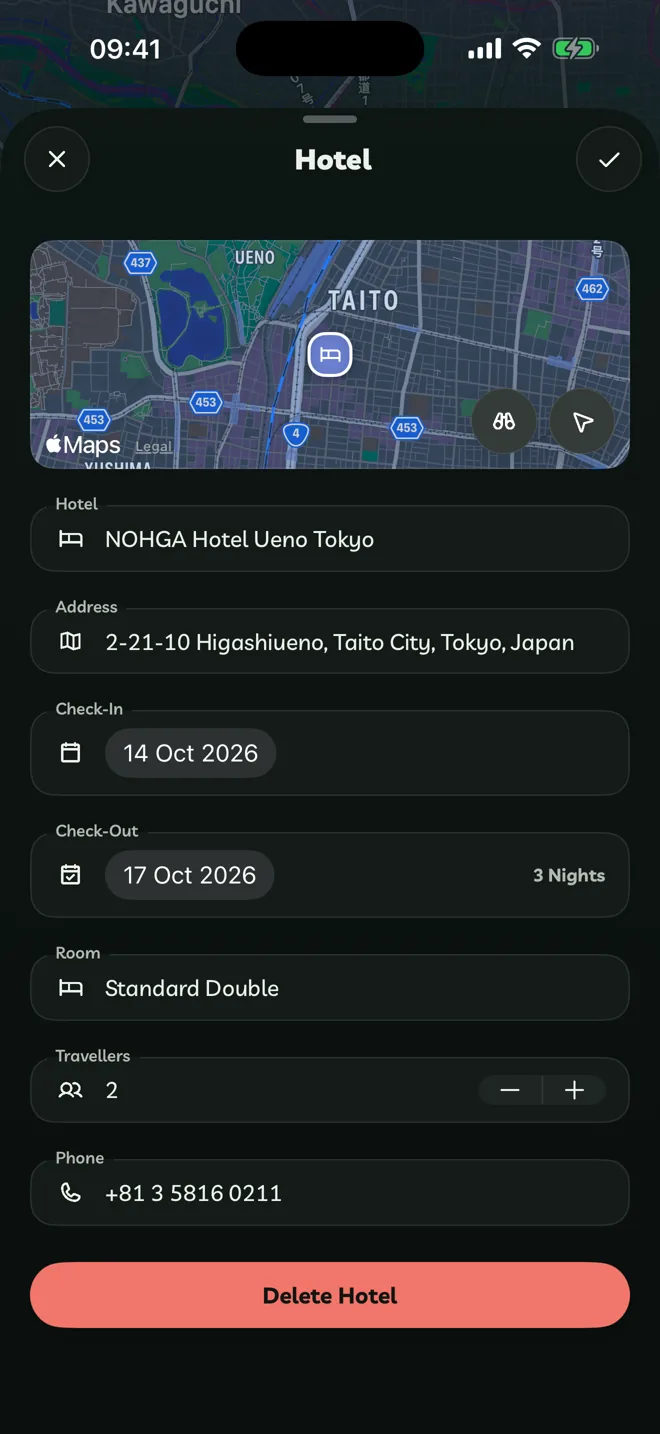
Add A Flight
Tap Add To Itinerary > Add Flight.
Choose Return or One Way.
Choose the Origin Airport and Destination Airport. Search by city or airport. The arrows between them swap them round.
Add the Airline, Flight Number, the Date, and when it Departs and Arrives. A flight is for the itinerary's travellers. Tap Add Flight.
After a one-way flight, the menu offers Add Return Flight. An itinerary holds an outbound and a return flight.
Add A Hotel
Tap Add To Itinerary > Add Hotel, then search for the hotel.
Choose it, then add the Room and Price if you have them. Its check-in and check-out follow the itinerary: you check in the day you land and check out the day you fly home, so there are no dates to set, and they move if the itinerary does. Tap Save.
An itinerary holds one hotel. To pick a different hotel, tap the back button at the top. On the web, hotels come from the map search only.
Reminders
With reminders on, Travelyfe reminds you before each flight, and before hotel check-in and check-out. On iPhone, your next flight or hotel also shows on the Lock Screen as it gets close.
Have a booking confirmation email? Copy its text and paste it into Add To Itinerary > Import Itinerary. Travelyfe adds its flights and hotels for you. See Add To An Itinerary From A Link. Pro