
Plan Your Days And Stops
Add days, add places to each day, and put them in order.
Each itinerary is a list of days. Each day holds stops: the places you'll go. To change them, tap Edit Itinerary first.
Add A Day
Tap Add To Itinerary > Add Day.
- Move a day: touch and hold its tab, such as Day 2, then drag it.
- Delete a day: open it and tap Delete Day at the top. If it has stops, they're deleted too.
Add A Stop
Open the day, then tap Add To Itinerary > Add Stop. From the Overview tab, the stop goes on the last day.
Search for the place, or pick one of the places nearby. If you can't find it, tap Add Manually.
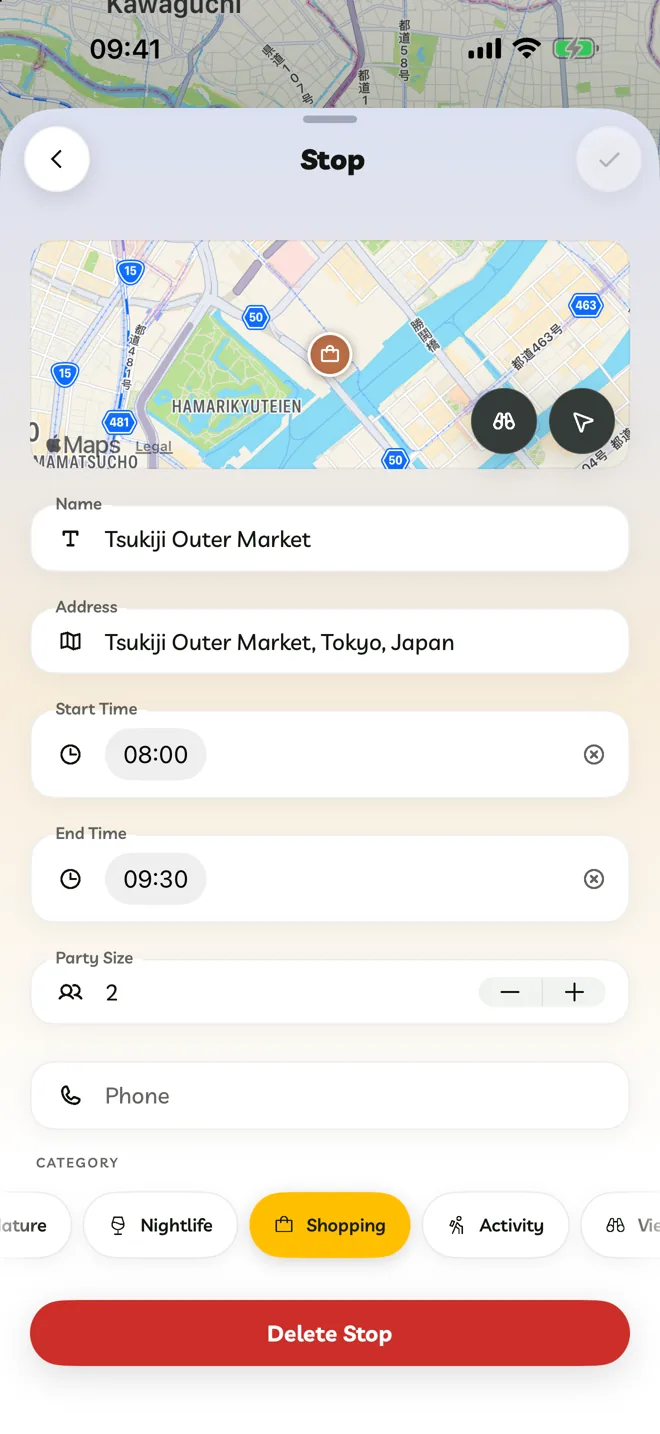
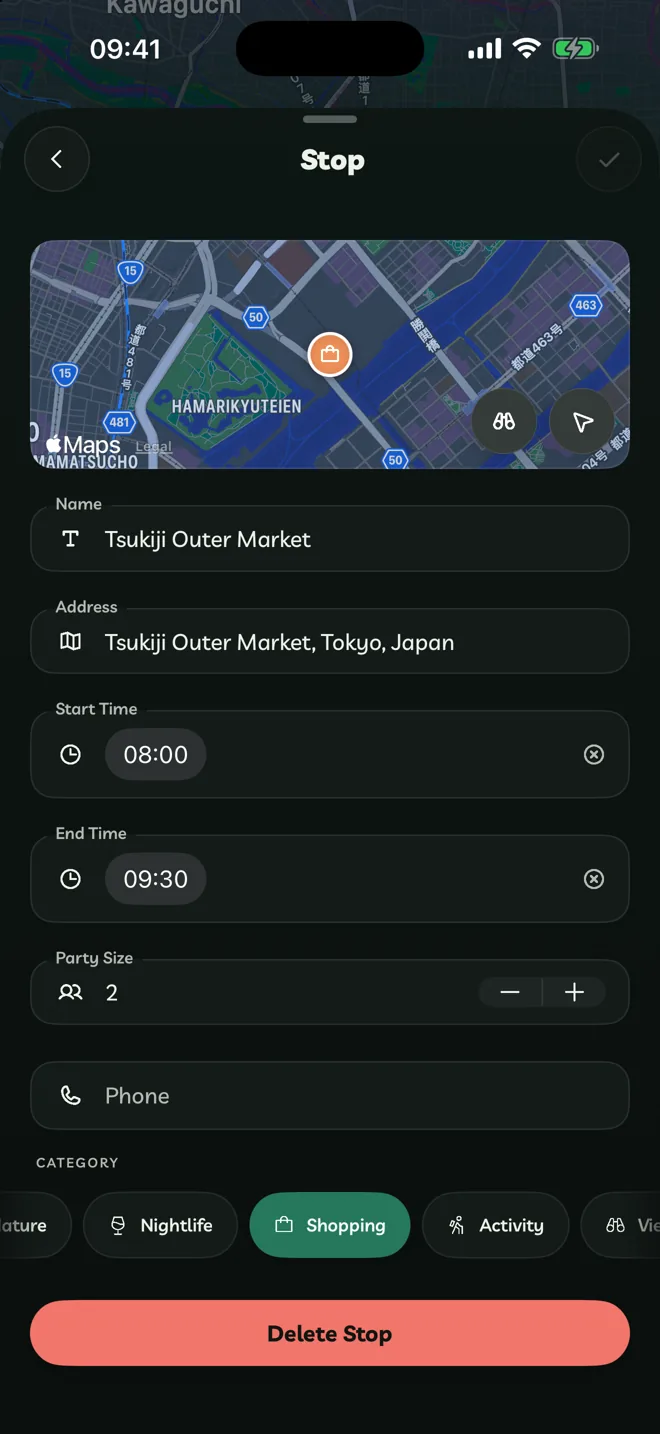
Add a Start Time and End Time if you like, and a Phone number and Category. Tap Save.
Categories are Beach, Landmark, Restaurant, Café, Hotel, Museum, Nature, Nightlife, Shopping, Activity, Viewpoint and Transport.
Move Or Delete A Stop
- Move it: touch and hold the stop, then drag it. Or touch and hold, then choose Move Up or Move Down.
- Delete it: tap its Delete Stop button.
With VoiceOver, double-tap and hold, then drag.
Getting Between Stops
Between two stops, choose how you'll travel: Walk, Hike, Bike, Drive, Transit or Train. Travelyfe shows how long it takes. Choose Hike for a route on foot. Travelyfe warns you if the next stop is more than 25 km away, which is too far to hike.
Directions And Look Around
Open a stop while editing to see it on a map.
- Get Directions opens the stop in Apple Maps or Google Maps.
- Look Around shows street-level views where Apple has them.
On The Web
- To move or delete a day, open the day's menu and choose Move Day Up, Move Day Down or Delete Day.
- To move a stop, press Alt+↑ or Alt+↓, or right-click it.
- There's no Look Around, and no Train between stops.