
Sign In To Travelyfe
Sign in with your email, Apple or Google. There are no passwords.
You need an account to use Travelyfe. It keeps your itineraries on all your devices and lets you share them.


Sign In With Your Email
Type your Email Address and tap Continue.
We email you a six-digit code. Type it in the boxes under your email address.
You can also tap the link in the email instead.
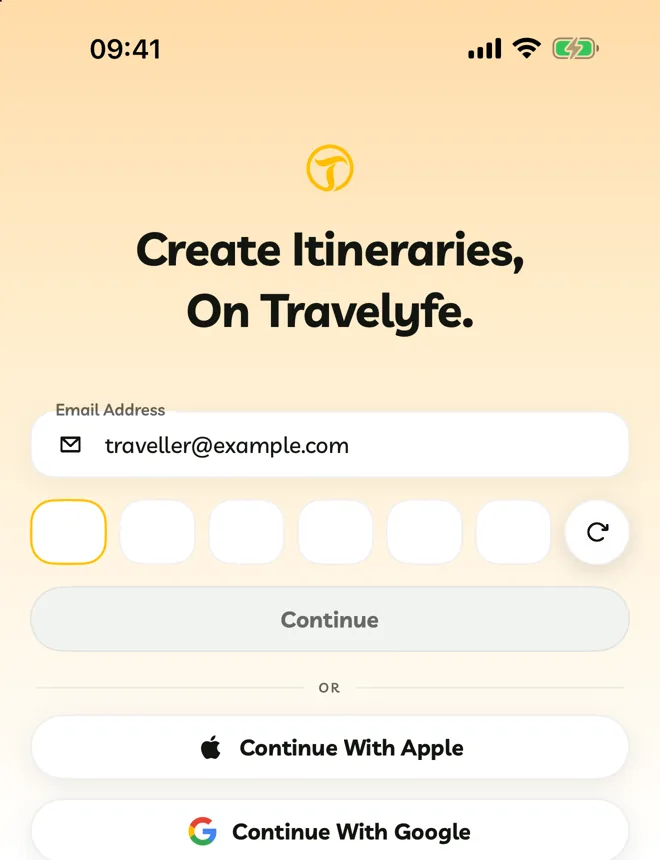
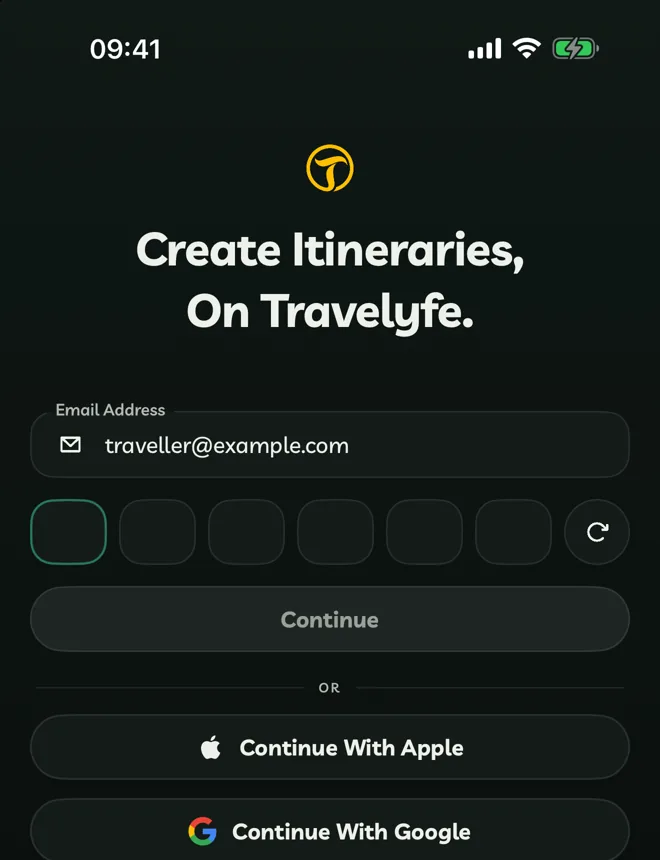
No code? Check your spam folder. After 60 seconds, tap the round arrow beside the boxes to send a new code.
Create A New Account
If your email address is new to Travelyfe, Create Your Account opens.
Enter your First Name and Last Name.
Choose a Username. Travelyfe suggests one from your name.
Tap Send Verification Code, then enter the code from the email.
Usernames are 3 to 20 characters: lowercase letters, numbers and underscores. You can change yours later in Account > More Options > Settings > Edit Account.
Sign In With Apple Or Google
Tap Continue With Apple or Continue With Google, then approve.
If you signed up with Apple or Google, typing that email address sends you to Apple or Google to sign in.
If you chose Hide My Email with Apple, your account uses Apple's private address. Typing your real email address makes a separate account.